
Ask for a cue without looking
Set the Action Button, or a tap on the back of your iPhone, to give you a cue with the phone locked in your pocket. It never mishears, and you set it up once, in about two minutes.
Which to use
- The Action Button is the button on the upper left side of the phone, above the volume buttons. It is on iPhone 15 Pro, 15 Pro Max, every iPhone 16 and later. You press and hold it, so it does not go off by accident, and it works with the screen off. Use it if your phone has it.
- Back Tap feels two quick taps on the back of the phone, even through most cases. It is on iPhone 8 and later.
You can set up both. Either way, step 1 comes first.
Step 1: Save “Cue me” as a shortcut
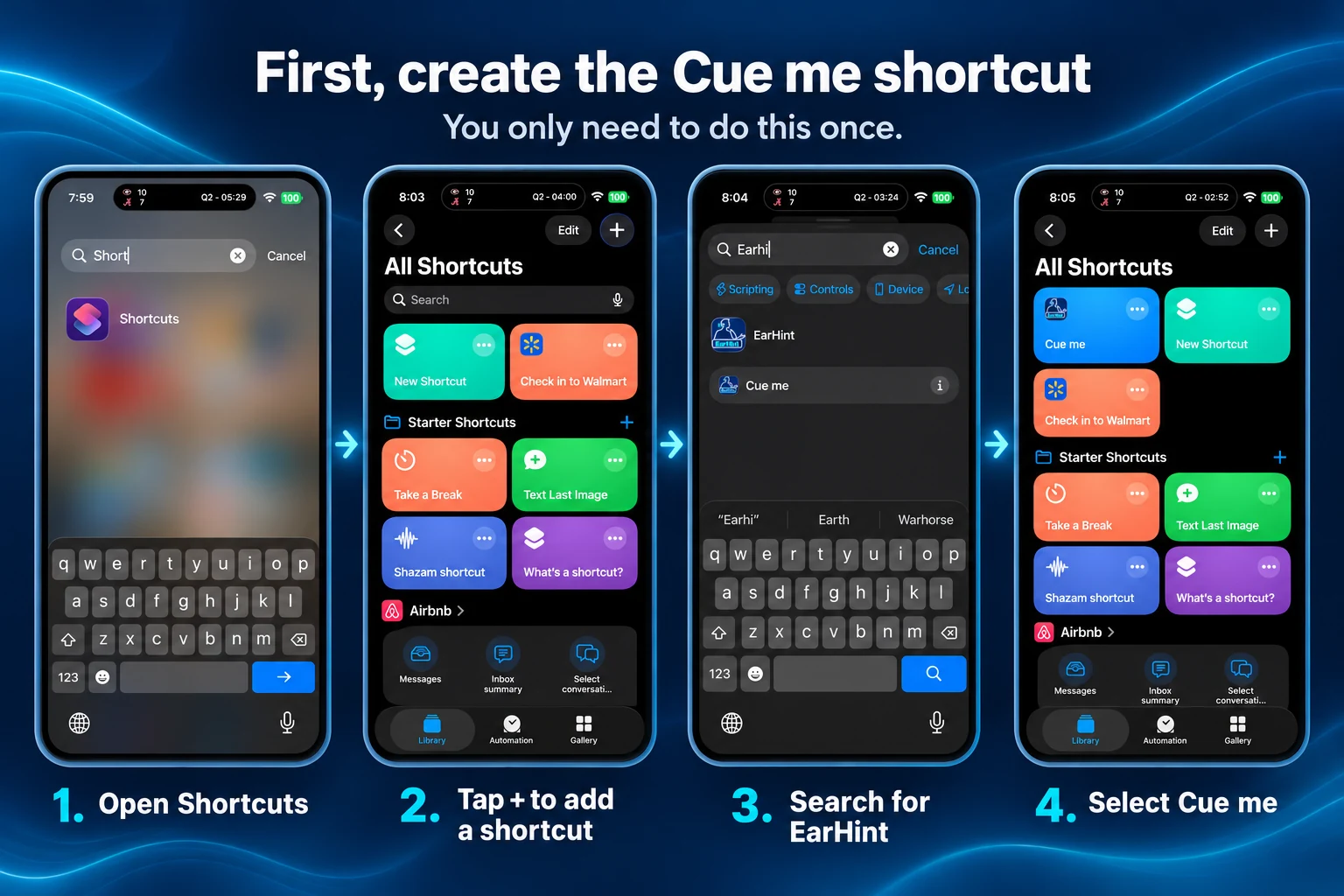
The Action Button and Back Tap can only run shortcuts saved in Apple’s Shortcuts app. This step saves EarHint’s Cue me as one.
- Open EarHint once, after installing or updating it, so your iPhone learns what it can do.
- Open the Shortcuts app, which comes with your iPhone, and tap Shortcuts at the bottom.
- Tap + in the top right corner. A new, empty shortcut opens.
- In the Search Actions field at the bottom, type EarHint.
- Tap Cue me. It is added to the shortcut.
- Check that the name at the top says Cue me. If it says something else, tap the name, choose Rename and type Cue me.
- Tap Done. Cue me is now among your shortcuts.
Step 2a: Set the Action Button
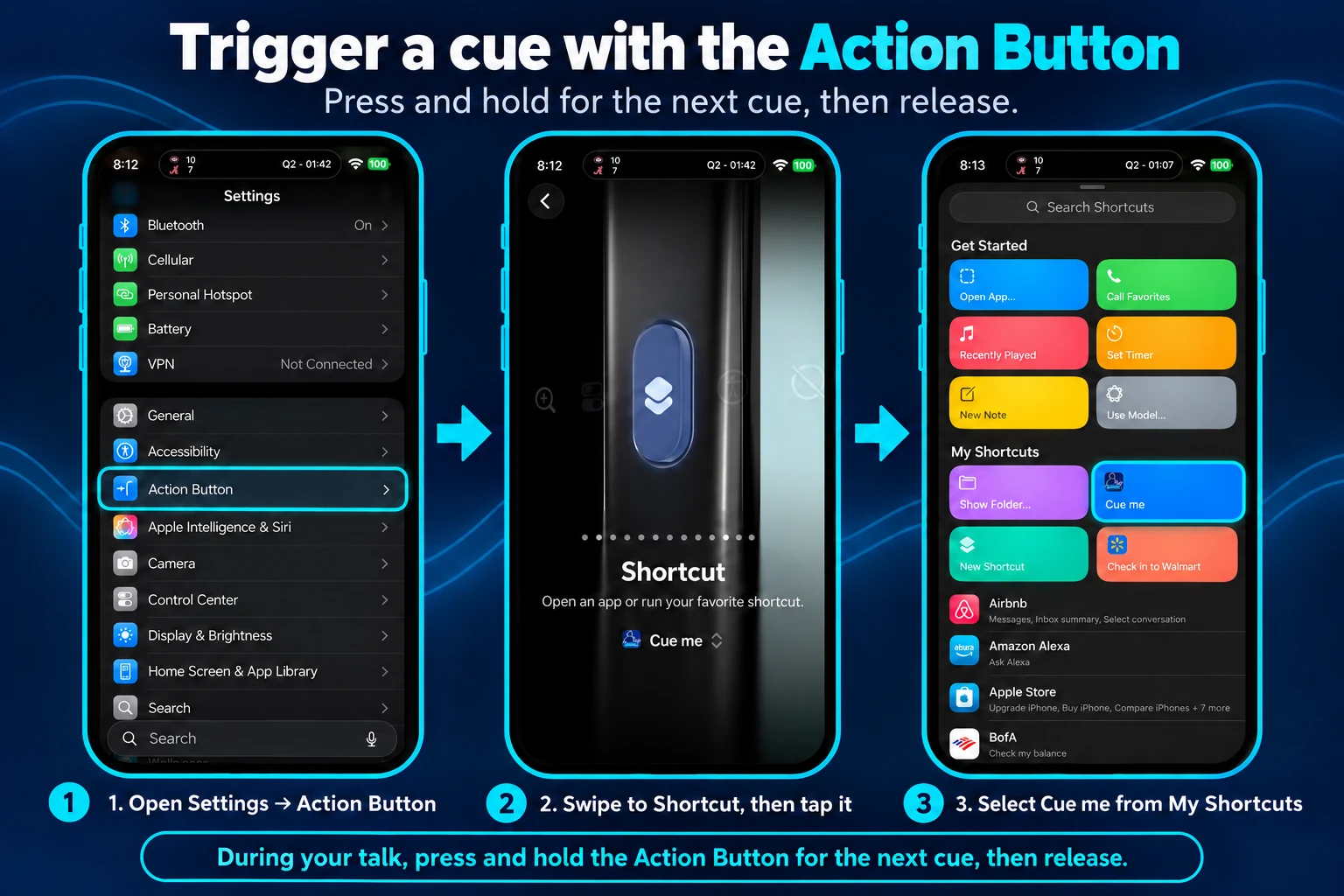
- Open the Settings app and tap Action Button.
- A picture of the side of the phone shows one choice at a time, such as Silent Mode, Focus or Camera. Swipe it left or right until it says Shortcut.
- Under it, tap Choose a Shortcut…. If a shortcut was chosen before, its name is there instead: tap that.
- Tap Cue me.
- Leave Settings. Your choice is kept; there is nothing to save.
To ask for a cue, press and hold the Action Button for about half a second, until you feel a small vibration. A quick press does nothing.
Step 2b: Set Back Tap
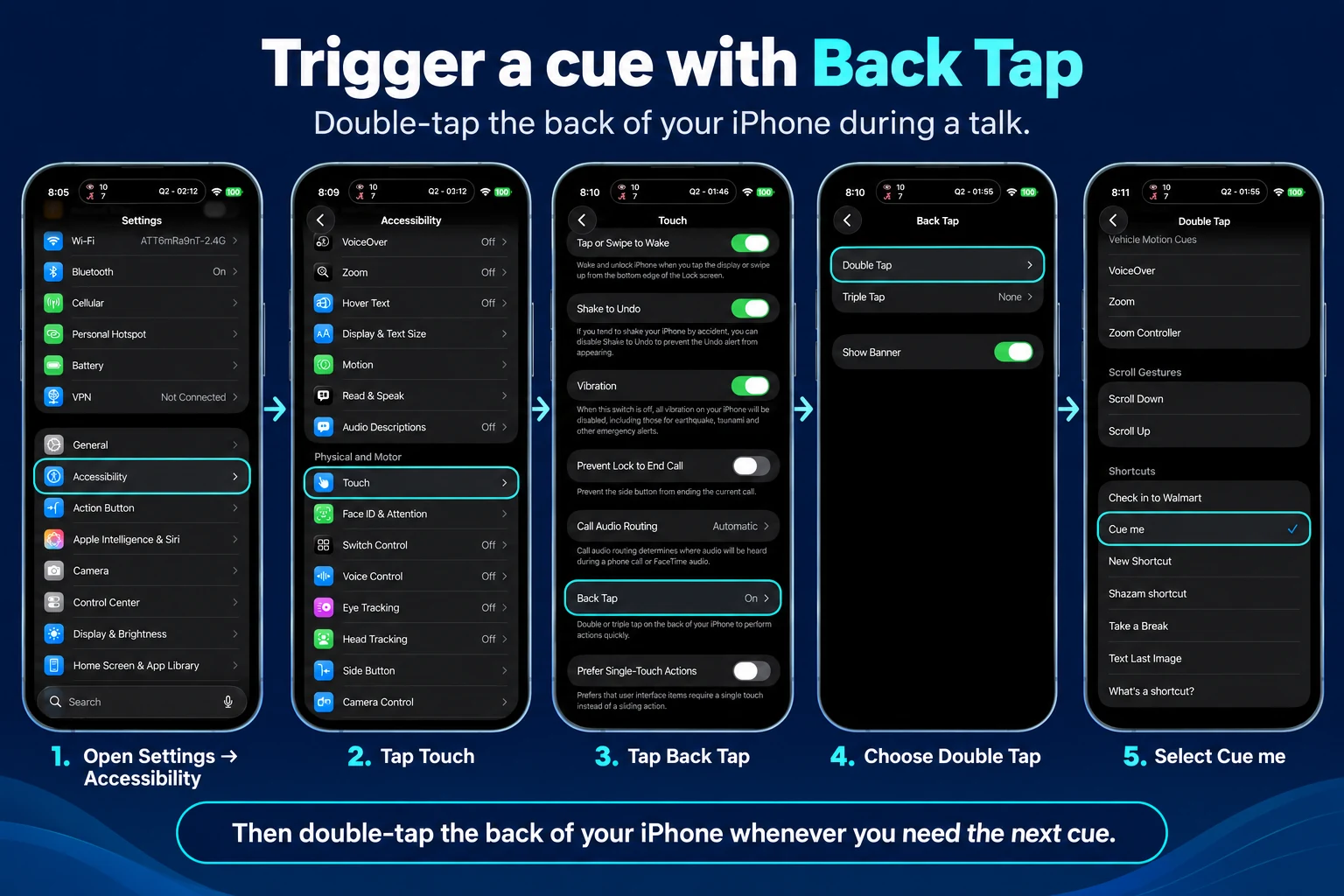
- Open the Settings app and tap Accessibility.
- Under Physical and Motor, tap Touch.
- Scroll to the bottom and tap Back Tap.
- Tap Double Tap. Choose Triple Tap instead if your phone gets bumped a lot in your pocket: it is set off by accident less often.
- Scroll down to the Shortcuts section and tap Cue me. A tick appears beside it.
To ask for a cue, tap the back of the phone twice, quickly and firmly, near the Apple logo.
Step 3: Try it in a rehearsal
- Open a talk set to cue When I ask, put in one earbud, and tap Rehearse, then Start.
- Hold the Action Button, or tap the back twice. You hear the keywords for your next point in the earbud. Ask again within a few seconds and you hear the sentence to carry on with.
- Lock the phone, put it in the pocket you will speak with, and try again.
In EarHint, Settings, then How I ask for a cue, then How to set it up, has these steps too.
If it does not work
EarHint or “Cue me” is not in Search Actions
Open EarHint once, then try again. If it is still missing, update EarHint from the App Store and restart the phone.
“Cue me” is not listed under the Action Button or Back Tap
These lists show only shortcuts saved in the Shortcuts app. Do step 1, and make sure you tapped Done.
It says “Start a talk or a rehearsal in EarHint first”
“Cue me” gives a cue in the talk that is running. Start a rehearsal or talk first, then ask.
Nothing happens when I press the Action Button
Hold it down until you feel the vibration. If there is none, open Settings, then Action Button, and check it still says Shortcut with Cue me under it: swiping the picture changes the choice at once, so it is easy to leave it on another.
Back Tap misses my taps, or cues me when I did not ask
A thick or rugged case can soften taps: tap more firmly, near the middle of the back. If you are cued when the phone is bumped, switch to Triple Tap. If Back Tap does not respond with the screen off, use the Action Button to ask from your pocket.